Fix it while you watch
Keyboard: while the video plays, press G or H. Each press moves the subtitles by 50 ms, and VLC shows the current subtitle delay on screen. If the gap gets bigger, press the other key. On macOS, the VideoLAN wiki lists H and J instead.
Menu: open Tools > Track Synchronization and type the delay in the subtitle field. This is faster for large delays: 2 seconds would take 40 key presses.
Find a line with a clear start, such as someone saying a name after a silence, and adjust until the text appears when the words start.
Make the fix permanent
VLC’s delay is not written into the subtitle file. To fix the file itself:
- Note the delay VLC shows when the subtitles look right, for example 1500 ms.
- Open Shift subtitles and add the subtitle file.
- Enter the same amount as the Time shift. In VLC a positive subtitle delay shows the subtitles later, so enter it as a positive shift (and a negative delay as a negative shift).
- Download the shifted file and play it in VLC with the delay back at 0.
With a shift of +1.5 seconds, this line:
1
00:00:10,000 --> 00:00:12,000
Is anyone here?
becomes:
1
00:00:11,500 --> 00:00:13,500
Is anyone here?
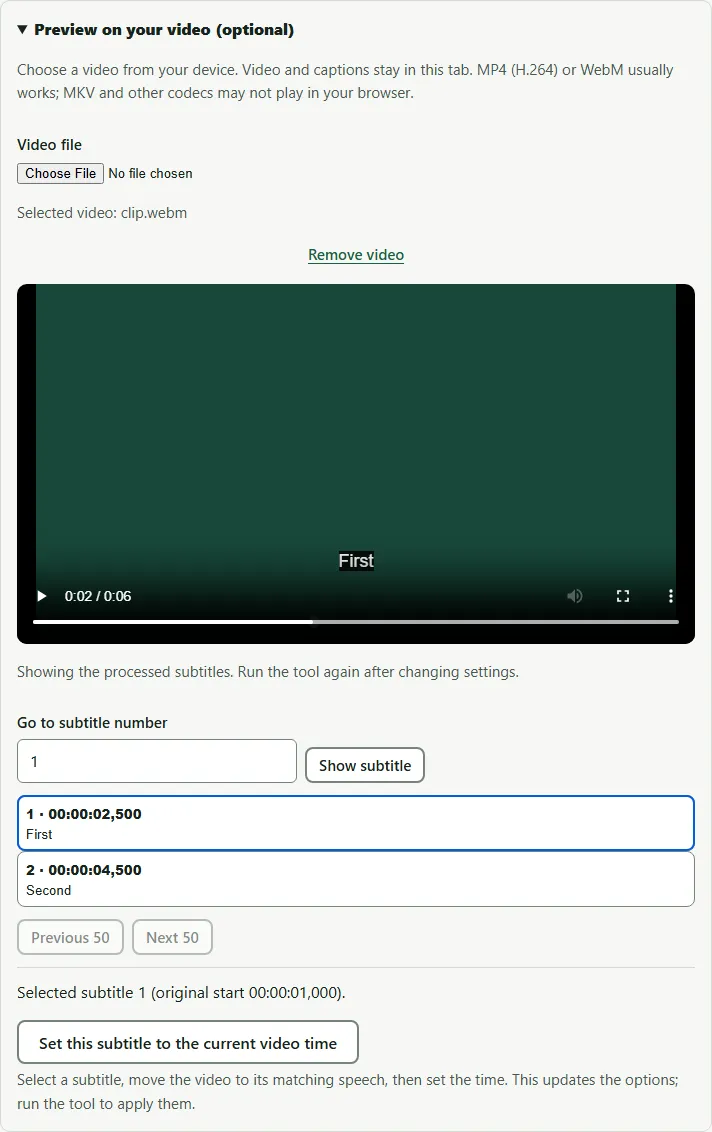
You can also check the result before downloading: open your video in the tool’s preview, and the shifted subtitles play over it in the browser. The video is not uploaded.
When one delay isn’t enough
If the subtitles are right at the start and wrong later, no single delay fixes them. That is drift, and it has its own causes and fixes — see why subtitles go out of sync. In short, use Sync subtitles with one line near the start and one near the end, or change the frame rate if you know both rates.
Common mistakes
- Using the audio delay keys. VLC also has audio delay shortcuts (J and K on Windows and Linux). They move the sound, not the subtitles.
- Forgetting to reset the delay. After shifting the file, set VLC’s subtitle delay back to 0, or the two corrections add up.
- Shifting in the wrong direction. Check one line after shifting; if it’s worse, use the opposite sign.
Source: VideoLAN wiki, Adjust subtitle delay and Hotkeys table.
Questions
What are the VLC shortcuts for subtitle delay?
G and H on Windows and Linux, according to the VideoLAN wiki; each press changes the delay by 50 ms. The wiki lists H and J for VLC on macOS.
Does VLC save the subtitle delay?
The delay is a playback setting. It does not change the subtitle file, so another player, a TV or your phone still shows the old timing. Shift the file to fix it everywhere.
VLC delay works at the start but not at the end. Why?
The subtitles drift, usually because they were made for a different frame rate. A single delay can't fix drift; use a two-point sync or a frame rate change on the file.
Can I sync subtitles on VLC for Android or iPhone?
The mobile apps also have a subtitle delay control, but the menus differ from the desktop app. The file fix below works for every device.