Export captions from CapCut
According to CapCut’s own guide for the desktop app, once captions are on the timeline:
- Click Export in the top right corner.
- In the export window, select Captions (you can turn off video if you only want the subtitle file).
- Choose SRT or TXT.
- Click Export to save the file to your computer.
SRT keeps the times; TXT keeps only the words. Menu names change between CapCut versions and differ in the mobile and web apps, so if you don’t see these options, check the export settings of your version.
Turn TXT or a transcript into SRT
If you have text without times — a CapCut TXT export, a script, or a transcript from another tool — TXT to SRT splits it into subtitles and gives each one an estimated duration based on its length.
- Add the text file or paste the text.
- Choose Each line (every line of text becomes one subtitle) or Each sentence (long sentences are split to fit two lines of 42 characters).
- Convert and download the SRT.
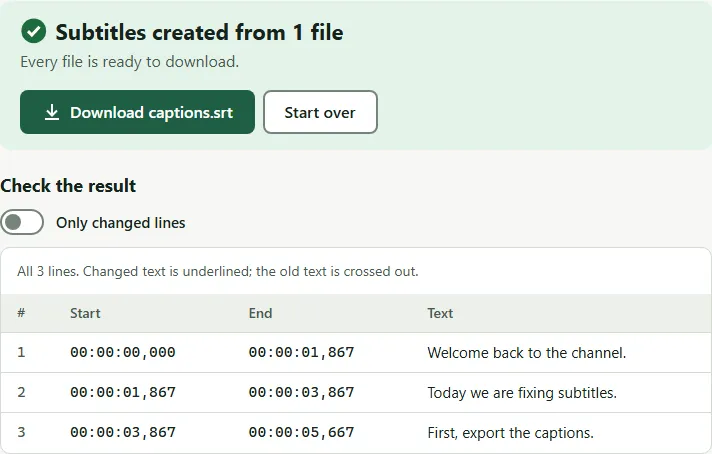
With the default settings, this text:
Welcome back to the channel.
Today we are fixing subtitles.
becomes:
1
00:00:00,000 --> 00:00:01,867
Welcome back to the channel.

2
00:00:01,867 --> 00:00:03,867
Today we are fixing subtitles.
Line the subtitles up with the video
Estimated times are a starting point. Play the video and compare:
- If every subtitle is early or late by the same amount, shift the file.
- If the gap grows during the video, use Sync subtitles with one line near the start and one near the end.
- For exact timing of every line, import the SRT into your video editor and drag the caption blocks.
Common mistakes
- Exporting TXT when you need SRT. If your CapCut version offers SRT, export that; it keeps CapCut’s times.
- Converting a file that already has times. If the text is really a subtitle file (SRT, WebVTT, ASS or SBV), TXT to SRT keeps its times instead of estimating new ones. To change only the format, use the subtitle converter.
- Uploading TXT to YouTube or an editor. Most want a timed format. YouTube lists SRT, SBV and WebVTT among its supported caption files.
Source: CapCut, how to download and export captions (desktop app).
Questions
Why does my exported TXT have no times?
A plain text export holds only the words. To place them on a video again, you need a subtitle format such as SRT. Export SRT if your CapCut version offers it, or convert the text and adjust the times.
Will TXT to SRT match the times of my video?
No. It estimates how long each subtitle should stay on screen from the length of the text; it does not listen to the audio. Check the start, then shift or sync the file.
Can I import the SRT back into CapCut or another editor?
SRT is the subtitle format most editors import. If your editor wants WebVTT or another format, convert the SRT with the subtitle converter.
Is this page affiliated with CapCut?
No. The CapCut steps here are based on CapCut's own published guide, and menus can change between versions.